Opinion: Connecting Claude to Notion, Drive, Canva, and Asana boosts productivity
The author, a frequent Claude user, argues that the real power of the Anthropic assistant comes from linking it to everyday productivity apps rather than relying on the chatbot alone. By adding Notion as an external brain, Claude can summarize long pages, generate new sub‑pages, and build structured databases for travel plans, project tracking, or content calendars. The Google Drive connector…
Key points
- Claude linked to Notion can auto‑summarize pages and create structured databases for projects and travel plans.
- Google Drive integration enables Claude to search, summarize, and combine files without manual uploads.
- Connections to Canva and Asana let Claude draft designs and generate task overviews, streamlining the author’s workflow.
With Canva integrated, Claude can draft visual concepts, critique designs, and suggest layout tweaks, giving non‑designers a solid starting point that they can polish in the Canva editor. The Asana link turns task lists into concise overviews, grouping items by priority or deadline and surfacing upcoming work. The piece emphasizes that these connectors, not a newer Claude model, are what make the assistant feel like a seamless layer on top of a personal productivity stack.
Overall, the author presents a practical workflow that treats Claude as a unifying AI layer, turning scattered tools into a coordinated, AI‑enhanced environment.
I use these productivity tools to make Claude far more powerful than it is out of the box
xda-developers.com · 17 September 2026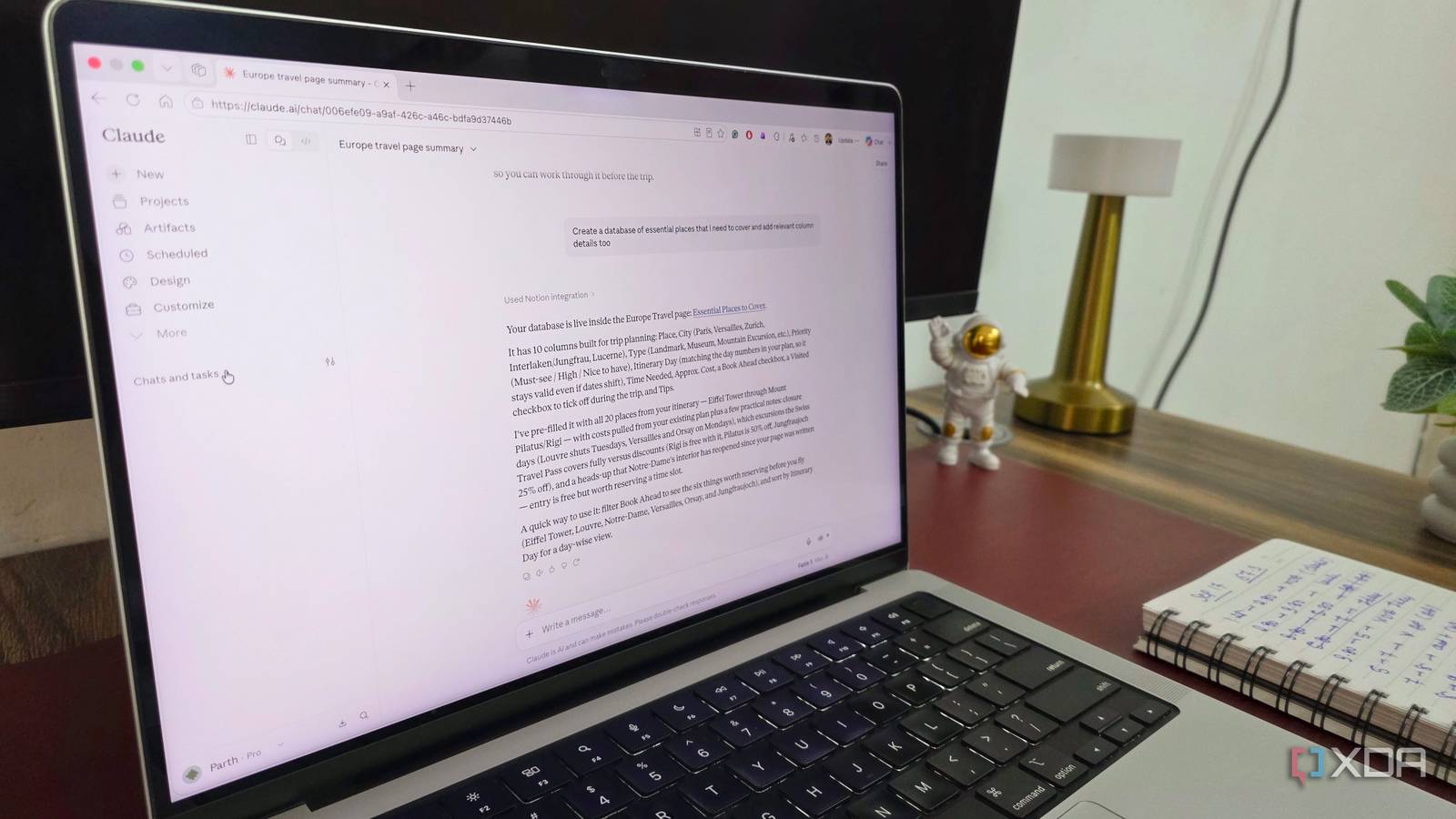
Claude is already one of the most capable AI assistants I use, but I have realized that the chatbot itself is only half the story. The real magic starts when I connect it with the right productivity tools and build a workflow around it.
Instead of jumping between apps, copying information manually, and treating Claude as just another place to ask questions, I use a handful of tools that help it fit naturally into my daily routine.
You can click the + icon beside the prompt box in Claude and head to Connectors -> Add connectors -> Browse connectors menu and connect these tools with Claude.
Notion
My external brain for Claude
I already use Notion to store long-term information, project pages, travel plans, notes, and structured databases, so connecting it with Claude removes a lot of manual work I would normally have to do inside Notion itself.
For instance, I have a Europe plan page saved in Notion. Instead of going through every section and reorganizing the information myself, I can ask Claude to summarize the entire page and highlight important details.
I can then take it a step further and ask Claude to add a section for visa requirements, including the documents I need to prepare. I can also ask it to create a database of essential places I want to visit during the trip.
Claude added a dedicated subpage with a database that carries all the relevant details like the place, approx. cost, city, itinerary day, priority, time needed, tips, and type.
And this is just one example. I can use the same workflow for project tracking, research notes, content calendars, and other complex Notion pages.
Google Drive
Claude finally knows my files
Google Drive is easily one of the biggest productivity boosters in my Claude setup because so much of my work already lives there. I keep article drafts, research documents, spreadsheets, screenshots, reference material, and other project files in Drive, so bringing that context into Claude saves me a lot of time.
Earlier, if I wanted Claude to analyze something from Drive, I would have to find the file, download it, upload it to Claude, and then explain what I wanted. Now, I can ask Claude to look through my Drive and work with relevant files directly.
For example, I can ask Claude to find all my articles around Android Auto in Google Docs, summarize the points I have already covered, and suggest angles that would not feel repetitive. If I have multiple drafts or research notes scattered across Drive, Claude can pull that information together and give me a much cleaner starting point.
This is where the integration becomes useful for me. Google Drive holds the information, while Claude helps me make sense of it without breaking my workflow.
Canva
Claude turns ideas into polished visuals
Canva is one of my favorite Claude integrations because it removes a lot of friction from the design process. I am not a professional designer, so I usually spend quite a bit of time figuring out layouts, typography, spacing, and how to make everything look more polished.
With Claude connected to Canva, I can bring AI into that workflow instead of starting from scratch every time.
For example, I can ask Claude to review a specific video file in Canva and suggest changes. It can suggest what to improve, whether that means tweaking the hierarchy, rewriting some of the copy, improving text color to boost readability, or making the overall design more consistent.
I can also start with nothing more than an idea. If I need a flyer, brochure, social media graphic, or another visual, I can ask Claude to create the same in Canva. That gives me a solid starting point. From there, I can open the design in Canva, adjust the fonts, move a few elements around, and give it a final touch.
Overall, Claude handles the tedious early stages and gives me ideas when I am stuck, while Canva still gives me complete control over the final design.
Asana
Turn tasks into actual work
Asana is another integration that makes Claude much more useful for me because it helps me stay on top of what is coming next instead of constantly checking my project boards manually.
I can ask Claude to pull up my tasks for next week, show me what is due first, and give me a quick overview of everything I need to finish. That is especially useful when I want to get an early start. For example, I can ask Claude to show me all the articles, research tasks, and other assignments due next week.
I also like using Claude to make sense of a busy workload. If I have several tasks spread across different projects, I can ask it to summarize everything in one place, group tasks by priority or deadline, and highlight anything that needs my attention.
I built a better Claude setup
What changed my experience with Claude wasn’t a new model or a clever prompt. It was connecting Claude to the tools I already use every day. Instead of using Claude as a separate AI app, I now treat it more like the layer that sits on top of my productivity stack.
That’s what makes these integrations so valuable. Claude is powerful out of the box, but once it works with the apps where my actual work lives, it becomes more useful.
This text was published by xda-developers.com and written by Parth Shah. It is reproduced here with attribution so you can read it in full; the rights remain with the publisher. Read it at the source ↗
The headline, key points and digest above were generated by Digest AI's editorial model from the linked sources. Automated summaries can contain errors: the sources are the record. Spotted a mistake? Tell us.
More in Marketing & Small Business
All →- Microsoft adds ChatGPT add‑in to Word for drafting and editing · 1 src
- Google expands agentic commerce tools for holiday retail · 2 src
- Meta launches Meta One subscription with AI tools and new app features · 6 src
- Google Workspace adds Gemini integrations with Asana, HubSpot, Salesforce and more · 1 src
- Notion adds AI 'skills' library and custom agents to streamline team workflows · 1 src
Comments
via GitHub Discussions